Install and sign up
The PlusHeat Engineer app is where your jobs appear, where the customer’s tracking link comes from, and where you file the report at the end of a visit.
Install
Section titled “Install”- iPhone: App Store → search PlusHeat Engineer → Get.
- Android: Google Play → PlusHeat Engineer → Install.
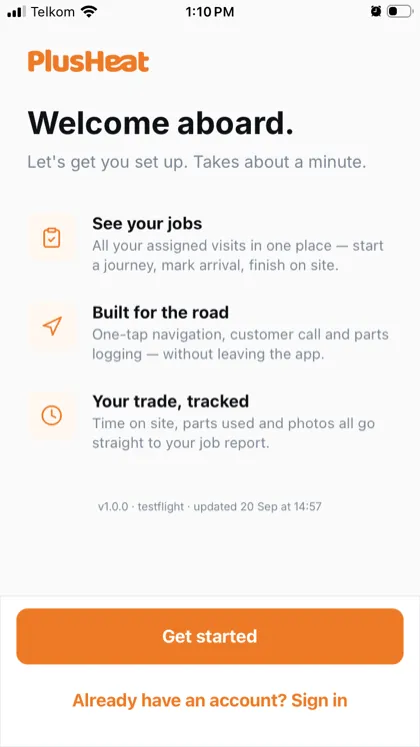
Open it and you land on Welcome aboard. First time here, press Get started. If you’ve used the app before — new phone, or you signed out — press Already have an account? Sign in.
Setting up — three steps
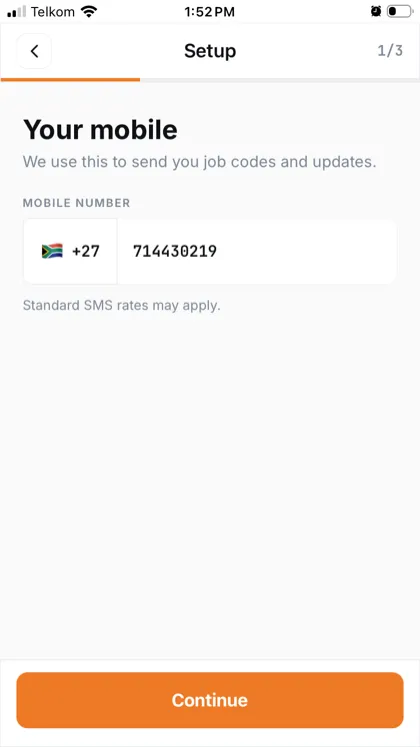
Section titled “Setting up — three steps”Your mobile number is your account. Use the number your company’s manager has for you: that’s how your jobs find you.
-
Your mobile. The flag is +44 by default — tap it to pick another country. Type the number without the leading zero, then Continue.
-
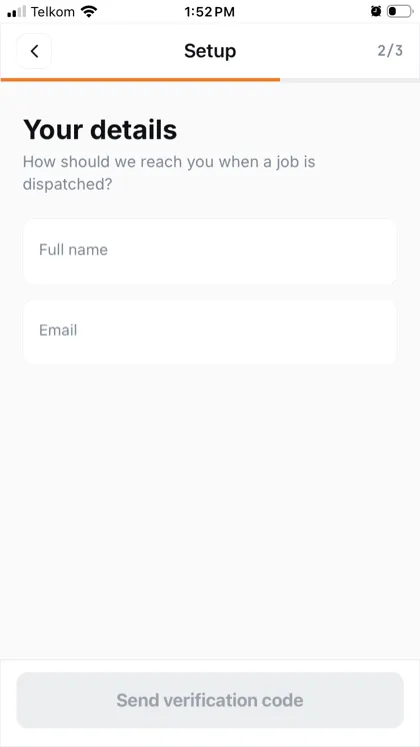
Your details. Your full name and email, then Send verification code. The name is what the customer sees; the email is where PlusHeat writes if something needs you.
-
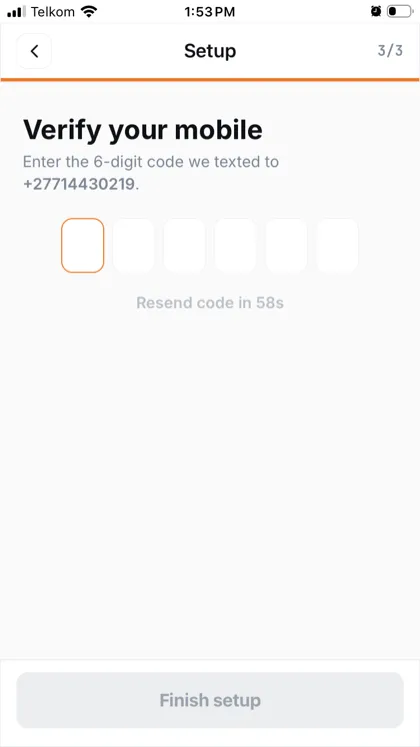
Verify your mobile. A six-digit code arrives by text. Type it in and the app moves on by itself. No code after a minute, press Resend code.
Location
Section titled “Location”The last screen asks for location. Allow it: it’s what puts your van on the customer’s map.
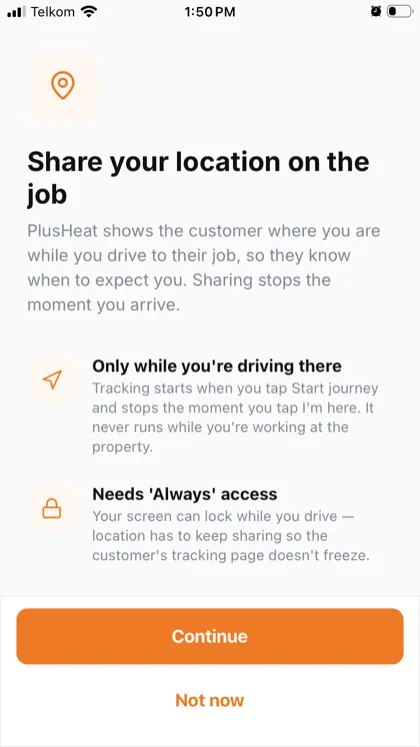
It only runs between Start journey and I’m here, on the job you’re driving to. Nothing is shared between jobs, or after you finish. Choose Always when the phone asks — otherwise the customer’s map freezes the moment your screen locks in the van.
You can press Not now and still work; the customer just won’t see you moving.
Signing in again
Section titled “Signing in again”New phone, or you signed out. The sign-in screen offers email first — press Use phone number instead for the quicker route, then the six-digit code.
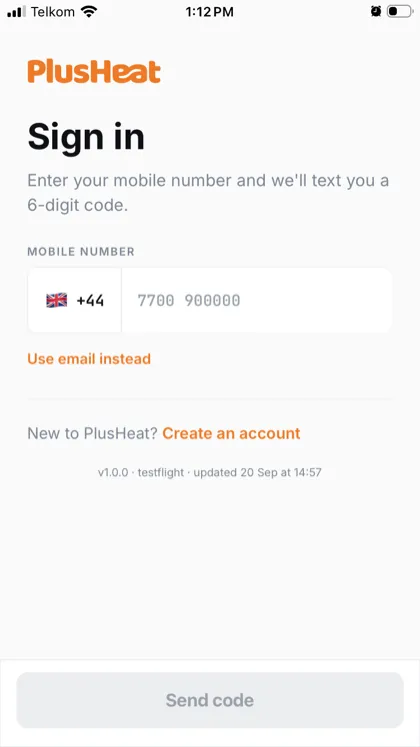
You stay signed in on that phone. You won’t be asked again unless you sign out.
No jobs showing?
Section titled “No jobs showing?”You’re signed in but the list is empty. In order of likelihood:
-
Nothing’s assigned to you yet. Ask your manager to assign a job — it appears within seconds.
-
The number doesn’t match — see the note above. Your manager can check it under Engineers in their app.
-
No signal. The app says so at the top; it catches up when you’re back.
Signing out
Section titled “Signing out”Tap your initials, top right → scroll down → Sign out. Do this if the phone changes hands.